From Slack Video to Polished Demo: How Product Teams Use Screen Bolt
Turn rough Slack screen recordings into clean product demos in under 2 minutes with auto-zoom, wallpapers, privacy blur, and webcam overlays.
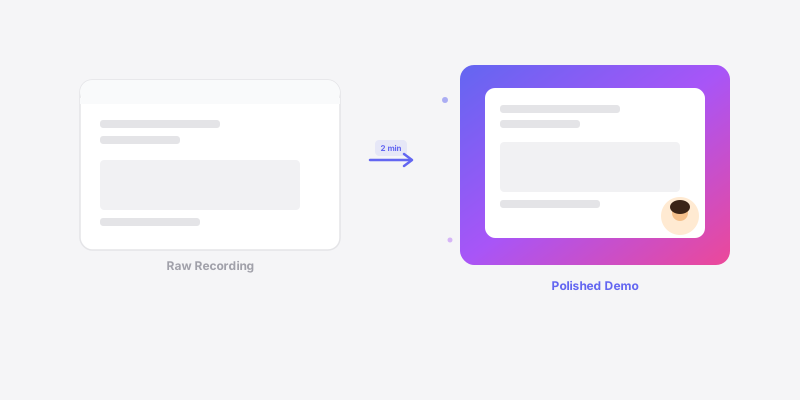
You know the recording. The one where your PM fires up QuickTime, clicks around a new feature for 90 seconds, and drops it into Slack with the caption "here's what I mean." The mouse is tiny. The desktop wallpaper is a photo from their kid's birthday party. Half the screen is a Slack sidebar full of DM previews nobody should see. And somewhere in the middle of it all, there's actually a really good demo of the thing they built.
Every product team has sent one of these. Probably today.
The recording itself isn't the problem. The intent is right - quick async communication, show don't tell. That's good instinct. The problem is that raw screen recordings are terrible at directing attention. Your viewer has to squint at a full-resolution capture and guess which button you just clicked. They're reading your Slack DMs instead of watching your demo. They're distracted by your cluttered desktop.
So what do most people do? They send it anyway. Because the alternative - importing into a video editor, manually adding zoom keyframes, cropping, blurring - takes 30 minutes nobody has.
The two-minute transformation
Here's what the same workflow looks like with Screen Bolt.
Your PM records the screen - same as before. Nothing changes about how they capture. They click through the feature, talk through what's happening, and stop recording. That part takes 60 seconds.
Then they open the recording in Screen Bolt. This is where a janky Slack clip becomes something you'd actually put in a release post.
Step 1: Auto-zoom snaps to the action. Screen Bolt detects every click in the recording and automatically generates smooth zoom animations that follow the cursor. That tiny button your PM clicked at coordinates (1847, 923) on a 4K display? The viewer now sees it fill the frame, perfectly centered, right as the click happens. No keyframes. No manual work. The zoom eases in before the click, holds, then gently pulls back out. It looks like a professional editor did it.
Step 2: Drop in a wallpaper. That birthday party photo behind the app window? Gone. Screen Bolt wraps the recording in a clean gradient or solid background. Pick from the built-in options or set brand colors. The recording immediately looks intentional - like it was planned, not grabbed between meetings.

Step 3: Blur the sensitive stuff. This is the one that saves companies from embarrassment. Your PM's Slack sidebar is showing a DM thread titled "Layoffs Q3 planning" and another one that says "Re: That guy in engineering." Privacy blur lets you paint over any region of the recording. It stays blurred for the entire clip - or just a section of it. Takes about five seconds to draw a box over the sidebar and move on.
Step 4: Add a face. Webcam overlay drops a small bubble of your PM's face into the corner of the recording. Sounds minor. But recordings with a human face hold attention dramatically better than faceless screen captures. People look at faces - it's hardwired. A small circular webcam overlay in the bottom-left turns a screen recording into a presentation.
Total time for all four steps: about two minutes. Maybe less once you've done it a few times.
Why this matters for product teams specifically
Product teams live in screen recordings. Bug reports, feature demos, design reviews, sprint updates, customer-facing changelogs, onboarding flows, sales enablement clips. The volume is high and the bar for production quality is usually low - because making things look good has traditionally meant "open Premiere Pro" and nobody's doing that for a Slack message.
But there's a gap between "raw screen grab" and "polished demo" that matters more than people think. A clean recording gets watched all the way through. A messy one gets skimmed or skipped. When your designer is reviewing a proposed interaction, they need to see the clicks clearly. When your sales team is forwarding a feature demo to a prospect, it can't have your Slack DMs in frame.
The real shift is making polish fast enough that it becomes the default. Not a special occasion thing. Not "we'll clean this up for the launch video." Just - every recording looks good because it takes two minutes and there's no reason not to.
A real workflow: the weekly product update
Here's a pattern I've seen work well. Every Friday, the PM records a 3-5 minute walkthrough of what shipped that week. Raw screen recording, talking through each change. They drop it into Screen Bolt, hit auto-zoom so every interaction is visible, add a brand-colored wallpaper, blur out any internal tools or sensitive data, and toggle on the webcam overlay.
The result goes into Slack, into the company wiki, and sometimes directly to customers in a changelog email. One recording, three audiences, and it looks professional enough for all of them.
Compare that to the old way: record in QuickTime, upload to Slack, and then separately ask the marketing team to "make a proper video" for the changelog. Two recordings of the same thing. One that's fast but ugly, and one that's pretty but took a week.
The before and after
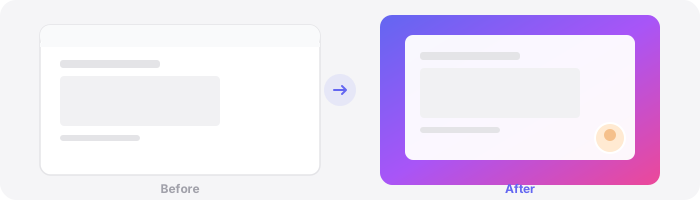
Before Screen Bolt: PM records screen. Full desktop visible. Clicks are hard to follow. Sensitive info in frame. No face. Looks like an afterthought. Gets dropped into a Slack thread where 4 out of 12 people watch it.
After Screen Bolt: Same recording. Auto-zoom follows every click. Clean gradient background. Sensitive areas blurred. PM's face in the corner. Looks like someone spent 30 minutes on it. Gets shared in Slack, reused in the sprint review, and forwarded to the sales team.
The content is identical. The footage is the same. The only difference is two minutes in Screen Bolt.
The uncomfortable truth about "good enough"
Most product teams have told themselves that raw recordings are fine. And they are - technically. The information is there if you squint. But "fine" is doing real damage to how your work is perceived. A sloppy recording of a brilliant feature makes the feature feel sloppy. A clean recording of a small improvement makes it feel like a big deal.
Perception isn't everything. But it's not nothing either.
Screen Bolt doesn't change what you record. It changes how it lands. And for product teams shipping fast and communicating async, that difference compounds every single week.
Your PM is going to record a screen capture tomorrow. The question is whether it stays raw or gets two minutes of polish that makes everyone look better. Including the product.
Ready to make better screen recordings? Download Screen Bolt for Mac and see the difference in your first recording.