Screen Studio vs Loom vs Screen Bolt: Which Mac Screen Recorder Fits Your Workflow?
An honest comparison of three popular Mac screen recorders - what each does best, where they fall short, and which one fits different workflows.
Not every screen recorder is solving the same problem. That sounds obvious but it's the thing most comparison posts get wrong - they line up features in a table and declare a winner without asking what you're actually trying to do.
Loom, Screen Studio, and Screen Bolt all record your Mac's screen. Beyond that, they diverge fast. I've used all three for real work over the past year. Here's what I've found.
What each tool is really for
Loom is a communication tool that happens to record your screen. Its entire design - instant sharing links, viewer analytics, comments, team workspaces - is built around replacing meetings and long emails. You record a quick video, send the link, your teammate watches it at 2x speed. Done.
Screen Studio pioneered the "beautiful screen recording" category on Mac. It was the first tool that made me think "wait, I don't need to edit this in Premiere." Auto-zoom, backgrounds, smooth animations - Screen Studio proved there was a market for recordings that look polished straight out of the box.
Screen Bolt picks up where Screen Studio left off and adds features aimed at people who record frequently and need more control - teleprompter support, privacy blur, webcam overlays, and 4K/60fps export. It's the newest of the three, and it's clearly been built by people who studied what the other two got right and wrong.
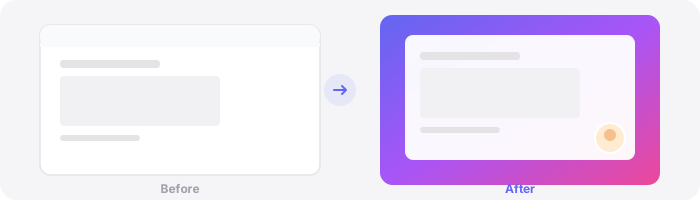
The honest breakdown
Recording quality and polish
Loom's recordings are functional. They look like screen recordings. That's fine for its use case - when you're explaining a bug to your teammate, nobody cares about a gradient background. But if you're putting a video on your landing page or in a sales deck, Loom footage looks exactly like what it is: a quick capture.
Screen Studio changed expectations here. Auto-zoom that follows your cursor, nice window framing, smooth motion - the output genuinely looks edited even though you didn't touch a timeline. It's a real "wow" the first time you see it.
Screen Bolt matches Screen Studio on the core polish features and, in my experience, the auto-zoom behavior is a bit smoother - though that's partly subjective and both do a good job. Where Screen Bolt clearly pulls ahead is export quality. 4K at 60fps is available if you need it. Screen Studio maxes out lower on both resolution and frame rate for most workflows.
Winner: Screen Bolt by a small margin over Screen Studio. Loom isn't competing here.
Sharing and collaboration
This is Loom's territory and it's not close. Record, get a link, send it. Your viewer can comment with timestamps. You can see who watched, how much they watched, when they dropped off. For teams doing async communication - engineering handoffs, design reviews, sales follow-ups - this workflow is genuinely great.
Screen Studio and Screen Bolt both export video files. You share them however you share files - upload to YouTube, drop in Slack, embed on a webpage. There's no built-in viewer analytics or commenting.
If async team communication is your primary use case, Loom wins by a mile and you should probably stop reading here.
Winner: Loom, decisively.
Features for frequent creators
This is where the comparison gets interesting. If you're someone who records product demos, tutorials, or marketing content on a regular basis, the feature set matters a lot more than if you record one video a week.
Here's a rough comparison:
| Feature | Loom | Screen Studio | Screen Bolt |
|---|---|---|---|
| Auto-zoom | No | Yes | Yes |
| Smooth cursor | No | Yes | Yes |
| Custom wallpapers | No | Yes | Yes |
| Privacy blur | No | No | Yes |
| Teleprompter | No | No | Yes |
| Webcam overlay | Yes | Yes | Yes |
| 4K export | No | Limited | Yes |
| 60fps export | No | Limited | Yes |
| Sharing links | Yes | No | No |
| Viewer analytics | Yes | No | No |
| Team workspace | Yes | No | No |
Two features on Screen Bolt's side deserve specific mention because they solve real problems.
Privacy blur lets you mark regions of your screen that get blurred during recording. If you're demoing a product that shows customer data, internal dashboards, or anything sensitive, this is a lifesaver. I used to handle this in post-production - selecting regions frame by frame in Premiere and applying blur effects. It was tedious and error-prone. Having it built into the recorder means you set it once and forget it. Screen Studio doesn't have this, and if you've ever accidentally shipped a demo with a customer's email visible, you know why it matters.
Teleprompter overlays your script on screen while you record. It's visible to you but doesn't appear in the recording. For anyone who does talking-head style demos or narrated walkthroughs, this means you're not memorizing scripts or glancing at notes off-camera. I was skeptical about this one - felt gimmicky - but after using it for a few recordings, I don't want to go back. Your delivery is just better when you're not trying to remember what to say next.
Winner: Screen Bolt for creator-focused features. Loom for team collaboration features.
Pricing and value
Loom has a free tier that's decent for light use, with paid plans starting around $12.50/month per user. It's a subscription. For teams, costs add up fast.
Screen Studio is a one-time purchase, which I appreciate. At the time of writing, it's around $89. You own it. Updates for a year, then you can pay for another year of updates or just keep using what you have.
Screen Bolt is also a one-time purchase at a competitive price point. Same model - pay once, own it, get updates.
I strongly prefer one-time purchases for tools like this. A screen recorder is a utility. I don't want another monthly line item. Both Screen Studio and Screen Bolt get this right.
Winner: Tie between Screen Studio and Screen Bolt (one-time purchase model). Loom's subscription is justified if you use the collaboration features daily.
Reliability and performance
All three are stable in my experience. I haven't had crashes or lost recordings with any of them - which, if you've used screen recorders over the years, you know isn't always a given.
One thing I'll note: recording at 4K/60fps does hit your CPU harder. Screen Bolt handles this well on Apple Silicon Macs, but if you're on an older Intel MacBook, you might want to stick with 1080p/30fps for longer recordings. This isn't a Screen Bolt issue specifically - it's a physics issue. High-res high-framerate recording is demanding.
Winner: Tie. All three are solid.
So which one should you pick?
I'll make this simple.
Pick Loom if your main goal is replacing meetings and emails with quick video messages for your team. You don't care about visual polish. You care about speed of communication and knowing whether people actually watched your video.
Pick Screen Studio if you want polished screen recordings and your needs are straightforward - product demos, tutorials, social media clips. It's a proven tool that does the core "beautiful recording" job well. It's been around longer and has a large community.
Pick Screen Bolt if you record frequently and need the extra control - privacy blur for sensitive content, teleprompter for scripted recordings, 4K/60fps for high-quality exports. If you're producing content on a regular cadence and you've hit the limits of simpler tools, Screen Bolt is built for that workflow.
Honestly, Loom occupies a different category than the other two. The real decision for most people reading this is Screen Studio vs Screen Bolt. And the answer depends on whether you need the extra features Screen Bolt offers or whether Screen Studio's core feature set covers your needs.
If privacy blur or teleprompter support would save you real time - and you'll know if they would - Screen Bolt is the obvious choice. If you just need clean auto-zoom recordings and nothing else, both will serve you well.
There's no wrong answer between those two. Just different workflows.
Ready to make better screen recordings? Download Screen Bolt for Mac and see the difference in your first recording.