Best Screen Recording Settings for YouTube, Twitter, and LinkedIn
Optimal resolution, frame rate, bitrate, and format settings for screen recordings on YouTube, Twitter/X, and LinkedIn.
You just spent 45 minutes recording a perfect screen walkthrough. The audio's clean, the flow is tight, you nailed the explanation on the first take. Then you upload it and it looks like it was filmed through a wet paper towel.
The problem usually isn't your recording. It's your export settings. Every platform re-encodes your video after upload, and if you feed it the wrong specs, the compression destroys your footage. Text gets blurry. UI elements smear. That crisp Retina screen you recorded on? Gone.
Here's what actually works for each platform.
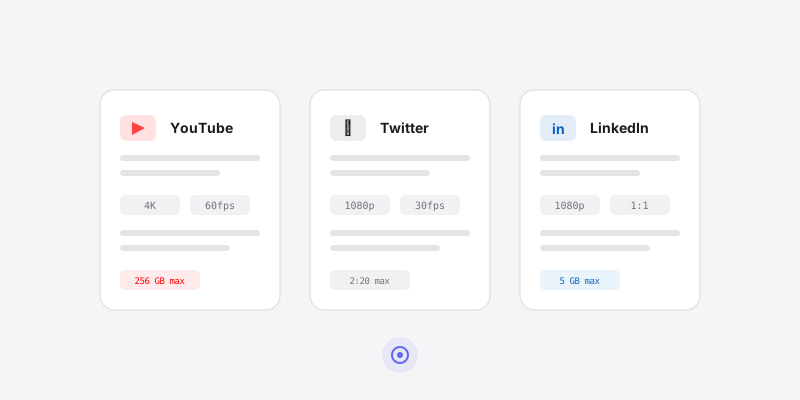
Quick Reference Table
| Setting | YouTube | Twitter/X | |
|---|---|---|---|
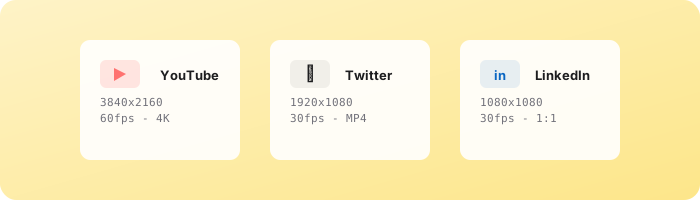
| Resolution | 3840x2160 (4K) or 1920x1080 | 1920x1080 or 1280x720 | 1920x1080 or 1080x1080 |
| Frame Rate | 60fps for software, 30fps for slides | 30fps or 60fps | 30fps |
| Aspect Ratio | 16:9 | 16:9 | 16:9 or 1:1 |
| Format | MP4 (H.264 or H.265) | MP4 (H.264) | MP4 (H.264) |
| Bitrate | 35-68 Mbps (4K) / 12-16 Mbps (1080p) | 5-8 Mbps | 8-12 Mbps |
| Max Length | 12 hours | 2 min 20 sec | 10 min |
| Max File Size | 256 GB | 512 MB | 5 GB |
Now let's break down why these numbers matter.
YouTube
YouTube is the most forgiving platform for screen recordings - and the one where quality matters most. Videos live there permanently, people watch them on TVs and monitors, and YouTube's search algorithm indexes your content for years.
Resolution: Go 4K if you can
Upload at 3840x2160 whenever possible. Here's why: YouTube assigns higher bitrate to 4K videos even when viewers watch at 1080p. That means sharper text, cleaner UI elements, and less compression artifacting on the details that matter in a screen recording.
If your Mac has a Retina display, you're already capturing at 2x resolution. A full-screen recording on a 14-inch MacBook Pro is 3024x1964 - close enough to 4K that upscaling to 3840x2160 makes sense.
If 4K isn't practical, 1920x1080 is the floor. Don't upload at 720p. Screen recordings have a lot of fine text and sharp edges that fall apart at lower resolutions.
Frame rate: 60fps for software
If you're recording an app, a website, a code editor - anything with scrolling, cursor movement, or animations - use 60fps. The difference is visible. Scrolling at 30fps looks choppy. Mouse movements stutter. Viewers notice, even if they can't articulate why.
30fps is fine for slide presentations or mostly-static content.
Bitrate and format
Export as MP4 with H.264 encoding. YouTube also accepts H.265 (HEVC), which gives you better quality at smaller file sizes - useful if you're uploading 4K and your internet is slow.
For bitrate, YouTube recommends 35-45 Mbps for 4K SDR at 30fps and 53-68 Mbps at 60fps. For 1080p, aim for 12 Mbps (30fps) or 16 Mbps (60fps). These numbers might seem high, but YouTube's going to re-compress everything anyway. Give it more data to work with and the output looks better.
One more thing
YouTube takes time to process high-resolution uploads. A 4K video might only be available in 360p for the first hour after upload. If you're sharing the link immediately - in a tweet, a newsletter, a Slack message - either wait for processing to finish or set the video to unlisted until it's ready.
Twitter / X
Twitter is a completely different animal. People scroll fast. Videos autoplay silently. You have 2 minutes and 20 seconds max (for most accounts), and the platform compresses your video aggressively no matter what you upload.
Resolution: 1080p or 720p
1920x1080 is the sweet spot. You can upload at 720p if you need a smaller file, but don't go lower - text in screen recordings will blur.
Twitter doesn't support 4K playback, so there's no benefit to uploading at that resolution. You'll just wait longer for the upload and get the same result.
Frame rate: 30fps is usually enough
Most Twitter videos are watched on phones, often while scrolling. 60fps is supported but the quality gain is marginal given how aggressively Twitter compresses everything. 30fps keeps your file size down and uploads faster.
That said, if your recording involves fast UI animations or rapid scrolling, 60fps can still help. It won't hurt - just know the difference is subtle on this platform.
Length and autoplay
This is the big one. Videos under 2 minutes 20 seconds autoplay in the feed. That autoplay is everything - it's the difference between someone seeing your content and scrolling right past a thumbnail they have to tap.
Keep it under 2:20. Ideally under 60 seconds. Twitter rewards short, punchy content.
And remember: autoplay is muted. Your first few seconds need to work visually on their own. If you're doing a screen recording, make sure the context is clear from the visuals alone - don't rely on narration to explain what's happening at the start.
Format and bitrate
MP4 with H.264. Keep bitrate around 5-8 Mbps for 1080p. Twitter's maximum file size is 512 MB, which is plenty for a sub-3-minute screen recording, but if you're exporting at absurdly high bitrates you might bump into it.
LinkedIn's video capabilities have improved a lot over the past couple of years, and video posts get significantly more reach than text or image posts in the feed. For product demos, feature announcements, and professional tutorials, it's worth optimizing for.
Resolution: 1080p, and consider square
1920x1080 (16:9) is the standard and works well. But here's something a lot of people miss: square video (1080x1080) outperforms widescreen on LinkedIn. It takes up more vertical space in the feed on mobile, which means more screen real estate and higher stop-the-scroll potential.
If your screen recording works in a square crop - say, you're demoing a single panel of an app or recording a centered portion of your screen - try 1:1. Not every recording lends itself to it, but when it works, the engagement bump is real.
Frame rate: 30fps
LinkedIn doesn't need 60fps. The content people post there tends to be more measured - demos, walkthroughs, talking-head explainers. 30fps is clean and keeps file sizes reasonable.
Length
LinkedIn supports videos up to 10 minutes. But shorter is almost always better. The sweet spot for engagement is 30 seconds to 3 minutes. Long enough to say something useful, short enough that people finish it.
Completion rate matters on LinkedIn's algorithm. A 90-second video that 70% of people finish will outperform a 5-minute video that 20% finish.
Format and bitrate
MP4, H.264. 8-12 Mbps for 1080p. LinkedIn's max file size is 5 GB, so you're unlikely to hit it with a screen recording.
How Screen Bolt Handles This
The annoying part of platform-specific settings is remembering them. Or looking them up every time you export. Screen Bolt's export panel lets you dial in resolution, frame rate, and format before you render - up to 4K at 60fps - so you can match whatever platform you're targeting without switching tools or doing mental math.
Recording a YouTube tutorial? Export at 4K/60fps. Trimming a clip for Twitter? Drop to 1080p/30fps and keep it under 2:20. Making a LinkedIn post? Export at 1080x1080 if the content works in square.
One recording, multiple exports. You don't re-record for each platform - you re-export with different settings. That's the workflow.
The Settings Most People Get Wrong
A few common mistakes I see:
Exporting at 720p for YouTube. You're leaving quality on the table. YouTube's 720p compression is noticeably worse than its 1080p or 4K compression. Always export at least 1080p.
Using variable frame rate (VFR). Some screen recorders default to VFR to save file size. This causes audio sync issues on almost every platform. Always export at a constant frame rate (CFR).
Ignoring bitrate entirely. If your export settings say "auto" for bitrate and your video looks soft after upload, this is probably why. Set it manually. More bits equals more detail preserved after the platform re-encodes your file.
Not testing. Upload a 30-second test clip before committing to a full recording's settings. Watch it on your phone. Zoom in on text. If it's readable, you're good. If it's muddy, bump up the resolution or bitrate and try again.
Screen recordings are unforgiving when it comes to compression. Unlike talking-head videos where a little softness doesn't matter, screen content has hard edges, small text, and high-contrast UI elements. The platforms will destroy those details if you don't give the encoder enough to work with. Get your settings right before you upload, and your content will look the way it should.
Ready to make better screen recordings? Download Screen Bolt for Mac and see the difference in your first recording.