5 Screen Recording Mistakes That Make Your Tutorials Look Amateur
Common screen recording mistakes that kill your tutorial quality - and how to fix each one fast.
I've watched hundreds of screen recordings. Product demos, coding tutorials, onboarding walkthroughs - you name it. And the same mistakes show up over and over. Not technical glitches. Not bad audio. Just small, fixable things that make an otherwise solid tutorial feel like it was thrown together in five minutes.
Here's the thing: your viewers won't tell you what's wrong. They'll just click away. So let me be the friend who gives you honest feedback.
1. Your Desktop Looks Like a Crime Scene
Open tabs everywhere. Slack notifications peeking out. A desktop wallpaper of your cat wearing a hat (okay, that one's fine). Random screenshots scattered across the screen. That half-finished spreadsheet from last Tuesday.
You'd be surprised how many people hit record without cleaning up first. And it's distracting. Your viewer is trying to follow a tutorial on setting up a CI pipeline, but their eyes keep drifting to that "URGENT: Q3 Budget Review" notification in the corner.
The fix: Close everything you don't need. Every window, every tab, every background app that might pop up. Better yet - use a clean wallpaper behind your recording so the visual noise disappears entirely. Screen Bolt lets you wrap your recording in a custom wallpaper, which means your content sits in a clean, professional frame regardless of what your actual desktop looks like. It takes two seconds and the difference is night and day.
2. Your Cursor Is Invisible
This one drives me up the wall. Someone's walking through a complex UI - clicking menus, selecting options, filling out forms - and the cursor is a tiny white arrow on a white background. Gone. Vanished. You're listening to "now click here" but you have no idea where "here" is.
Standard screen recordings capture your cursor at its normal size. Which is fine for personal use. It's terrible for teaching.
The fix: You need a cursor that people can actually follow. Screen Bolt has a smooth cursor feature that makes your mouse movements fluid and visible - no more jerky, hard-to-track pointer skating across the screen. Your cursor becomes something viewers can follow naturally instead of hunting for. It sounds small. It changes everything about how watchable your recording is.
3. You're Not Zooming Into the Action
Picture this: you're recording a full 27-inch display. You click a small button in the corner. You type into a tiny input field. You select an option from a dropdown that takes up maybe 3% of the screen.
Your viewer - probably watching on a laptop, maybe even a phone - can't see any of it.
This is the single biggest quality gap between amateur and professional screen recordings. Pros zoom in. They show exactly what matters, exactly when it matters. Amateurs record their entire screen and hope for the best.
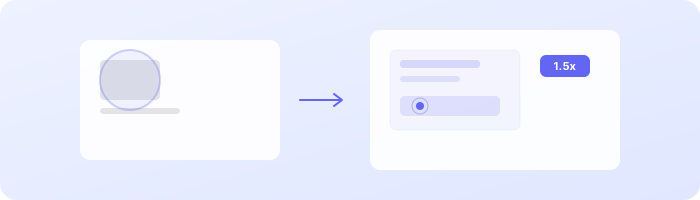
The fix: Zoom into the important stuff. Don't make people squint. Screen Bolt does this automatically - its auto-zoom feature detects where the action is happening and smoothly zooms in during recording. No manual keyframes. No post-production editing. You just record naturally and the zoom follows your focus. I've seen this one feature alone take recordings from "meh" to "this person knows what they're doing."
4. Your Recording Looks Flat and Unbranded
Raw screen recordings all look the same. A rectangle of your screen. Maybe a little shadow if you're lucky. No frame, no context, no personality.
Compare that to the polished product demos you see from companies like Linear or Arc. Their recordings have depth. A background. A frame around the content. They look made, not captured.
The difference isn't expensive video editing software. It's just presentation.
The fix: Add a wallpaper and frame to your recording. It sounds cosmetic, but it signals quality. It says "I put thought into this." Screen Bolt includes custom wallpapers that wrap around your recording - gradient backgrounds, solid colors, whatever fits your brand. You pick one before you record and your output immediately looks like it belongs in a product launch, not a Jira ticket.
And if you're doing webcam recordings, Screen Bolt's webcam overlay lets you drop your face into the corner of the recording. Adds a human element without requiring a full video production setup.
5. You Forgot to Hide Sensitive Information
This one isn't about looking amateur. It's about looking careless. And it happens constantly.
You're recording a demo of your internal dashboard. Everything's going great. You walk through the new feature, show how it works, explain the flow. Then you share the recording and someone points out that your Slack DMs were visible in the background. Or a customer's email address was on screen for ten seconds. Or - worst case - an API key was sitting right there in your terminal.
Most people don't catch this until after the recording is done. Then it's either re-record the whole thing or spend twenty minutes in a video editor painting blur boxes frame by frame. Both options are miserable.
The fix: Handle privacy during the recording, not after. Screen Bolt has a privacy blur feature that lets you mark areas of your screen to blur in real-time while you record. Sensitive sidebar? Blurred. Notification center? Blurred. That Slack channel with the spicy team drama? Blurred. You set it once and record without worrying about what's leaking into frame.

This matters way more than most people think. One accidental data exposure in a shared recording can create real problems - especially if you're in a regulated industry or handling customer data.
The Common Thread
All five of these mistakes share something: they're not about your content. Your tutorial might be excellent. Your explanation might be clear. Your workflow might be genuinely helpful. But if the recording itself is cluttered, hard to follow, flat-looking, or leaking data - none of that content quality comes through.
The good news is that every single one of these is fixable without becoming a video editing expert. You don't need Final Cut Pro. You don't need motion graphics skills. You need a screen recorder that handles presentation and privacy at the recording stage, not in post.
That's why we built Screen Bolt the way we did. Auto-zoom, smooth cursor, custom wallpapers, webcam overlay, privacy blur - these aren't gimmicks. They're direct answers to the five problems I just described. Record once, get a polished result, and move on with your day.
Your tutorials deserve to look as good as the knowledge they contain. Stop letting fixable mistakes get in the way.
Ready to make better screen recordings? Download Screen Bolt for Mac and see the difference in your first recording.