How to Hide Sensitive Information in Screen Recordings Without Re-Editing
Stop leaking API keys, Slack DMs, and customer data in your screen recordings. Learn how to blur sensitive info during recording - not after.
Last month a developer on Twitter shared a product demo. Nice recording. Clean explanation of a new API feature. One problem: his .env file was open in a tab behind his browser. For about four seconds, his Stripe secret key was visible to anyone who paused at the right moment.
He deleted the tweet within an hour. But screenshots travel fast..
This isn't a rare thing. If you record your screen regularly - demos, tutorials, bug reports, onboarding videos - you've probably exposed something you shouldn't have. Maybe you caught it. Maybe you didn't. Maybe it's still sitting in a Notion doc somewhere with 47 views.
The Problem Is Bigger Than You Think
Developers and product teams live inside tools that are full of sensitive data. It's just the nature of the work. Your screen at any given moment might show:
- Slack DMs and private channels
- Customer names, emails, and account details in admin panels
- API keys and tokens in terminals and config files
- Internal Jira tickets with confidential project names
- Email notifications with sender names and subject lines
- Browser bookmarks that reveal internal tool URLs
You don't think about any of this while you're recording. You're focused on the thing you're trying to show. Your brain filters out the sidebar, the notification that pops up, the terminal session behind your browser. But the camera doesn't filter. It captures everything.
And here's what makes it worse: you often don't notice until someone else does. You watch your own recording and your eyes go to the content you intended to show. A colleague watches it and spots their salary in a background spreadsheet.
The Old Way: Fix It in Post
Traditionally, you had two options after catching sensitive data in a recording.
Option A: Re-record. Close the sensitive stuff, set everything up again, and try to recreate the same walkthrough. If it was a 20-minute demo, good luck getting the same energy and flow the second time. If you were recording a specific bug that's hard to reproduce - well, that recording might just be lost.
Option B: Blur in post-production. Import your recording into a video editor. Scrub through the timeline. Find every frame where sensitive info appears. Draw blur boxes. Keyframe them if the content moves or scrolls. Export. Review. Realize you missed a spot at 4:17. Fix it. Export again.
Both options are painful. Option A wastes your time and sometimes isn't even possible. Option B requires video editing skills that most developers and PMs don't have - and even for people who do, it's tedious work that can easily take longer than the recording itself.
So what actually happens in practice? People just share the recording anyway and hope nobody notices. That's the honest truth. The friction of fixing it is so high that most people gamble.
That gamble works until it doesn't.
A Better Approach: Blur During Recording
The real fix is handling privacy before you hit export, not after. If sensitive areas of your screen are blurred while you record, there's nothing to fix later. The data never makes it into the file.
This is exactly what Screen Bolt's privacy blur does. Before you start recording, you select regions of your screen that should be blurred. Sidebar with Slack messages? Draw a blur zone over it. Notification center? Covered. That terminal pane with environment variables? Hidden.
The blur applies in real-time to your recording output. You can still see everything on your screen while you work - the blur only shows up in the captured video. So your workflow stays normal. You don't have to close apps or rearrange windows.
Here's how to set it up:
-
Open Screen Bolt and start setting up your recording. Pick your capture area - full screen, a specific window, or a custom region.
-
Activate privacy blur. You'll see an option to add blur zones before recording. Click it.
-
Draw blur regions over sensitive areas. Just drag rectangles over the parts of your screen you want hidden. Slack sidebar, email client, bookmarks bar, terminal - whatever shouldn't be in the final recording. You can add as many zones as you need.
-
Record normally. Do your demo, tutorial, or walkthrough exactly as you would otherwise. The blur zones stay fixed in place and keep those areas obscured in the output.
-
Export and share. Your recording is clean. No post-processing, no second takes. The sensitive data was never captured.
That's it. The whole process adds maybe 30 seconds to your recording setup. Compare that to 20 minutes of frame-by-frame blurring in a video editor - or worse, the risk of sharing unredacted footage.
When This Matters Most
Some scenarios where privacy blur isn't optional - it's necessary:
Customer demos for enterprise sales. You're showing your product with real data from a staging environment that mirrors production. Customer names, usage stats, billing info - all potentially visible. One sloppy recording shared in a sales channel could violate your own privacy policy.
Internal tool walkthroughs. Onboarding a new engineer? Walking them through your admin dashboard? Those recordings often get saved in wikis and shared docs that dozens of people access. Whatever was on screen becomes semi-permanent.
Bug reports with screen recordings. You're capturing a bug in your app. The bug is in one corner of the screen. The rest of the screen has three Slack conversations, your email, and a spreadsheet with revenue numbers. That bug report goes to your issue tracker where contractors and external collaborators might see it.
Public tutorials and content. If you're making content for YouTube, your blog, or social media, the stakes are even higher. That recording could be seen by thousands of people. Any exposed data becomes effectively public.
What About Just Closing Everything?
Sure, you can close every app, clear your desktop, hide your bookmarks, and set up a pristine recording environment. People do this. It works.
But it's slow. And it's fragile. You forget one window. A notification pops through your Do Not Disturb settings. Someone sends you a Calendar invite that banners across your screen mid-recording. macOS has a lot of ways to surface information you didn't ask to see.
Privacy blur is a safety net that works even when you forget. The zones are set. The areas are covered. If a notification pops up inside a blur zone, it's already hidden. You don't have to be perfect with your setup because the blur handles the gaps.
The Real Cost of Getting This Wrong
I don't want to be dramatic about this. Most accidental exposures in screen recordings don't lead to disaster. Someone sees a Slack message they shouldn't have. Awkward, but not catastrophic.
But some do lead to real problems. API keys get scraped by bots that watch public repos and videos. Customer data exposure can trigger compliance issues under GDPR, HIPAA, or SOC 2. Internal project codenames leak and end up on social media.
And even the non-catastrophic cases erode trust. Your team stops being comfortable sharing recordings if they've seen a colleague accidentally expose something. The whole culture of async video communication - which is genuinely useful - gets undermined.
Just Build the Habit
The best thing you can do is make privacy blur part of your recording routine. Every time you open Screen Bolt, spend 15 seconds setting your blur zones before you hit record. It becomes automatic fast.
Screen Bolt also gives you auto-zoom to keep focus on what matters, smooth cursor for easy-to-follow mouse movements, and custom wallpapers so your recordings look polished - but privacy blur is the feature that protects you. The others make your recordings better. This one keeps them safe.
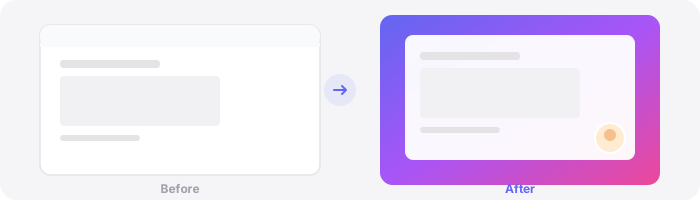
Stop gambling that nobody will pause at the wrong frame. Set up your blur zones and record with confidence.
Ready to make better screen recordings? Download Screen Bolt for Mac and see the difference in your first recording.