What Is Auto Zoom in Screen Recording and Why It Changes Everything
Auto zoom detects your clicks and automatically zooms into the action during screen recordings. Here's how it works and why it makes every recording better.
Record your screen right now. Full resolution, no edits. Then watch it back at the size most people will actually see it - in a Slack embed, a Notion page, or a small browser window. Try to follow what's happening.
You can't. Not really.
The clicks are invisible. The buttons are tiny. The text you're reading on screen is unreadable. You know what you did because you did it, but anyone else watching is just staring at a giant rectangle trying to figure out where to look.
This is the fundamental problem with screen recordings, and it's why most of them don't actually communicate what they're supposed to. You recorded the whole screen when your viewer only needed to see a 400-pixel region around your cursor.
Auto zoom fixes this. And most people don't even know it exists.
What auto zoom actually is
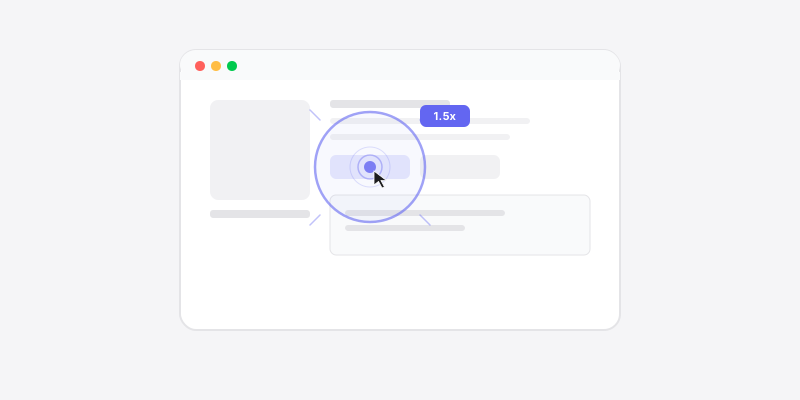
Auto zoom is a feature in screen recording software that automatically detects where you interact with the screen - your clicks, your typing, your scrolling - and generates smooth zoom animations that follow the action. Instead of the viewer seeing a static full-screen capture, they see the recording dynamically zoom into each point of interaction, hold for a moment, then zoom back out.
Think of it like having a camera operator who follows your cursor. Every time you click a button, the "camera" smoothly pushes in to show that button at a readable size. When you move to a different part of the screen, it pans over and zooms into the new area. The viewer always sees what matters at a size where they can actually read it.
No manual keyframing. No post-production editing. The software does it automatically based on your actual interactions during the recording.

Why this matters more than you think
Here's the thing about screen recordings: the person recording always thinks the content is clear. They just clicked through it - of course they know what happened. But the viewer is working with dramatically less context. They don't know where the cursor is going next. They can't predict which menu will open. They're watching at 1x speed with no ability to ask "wait, what did you just click?"
On a 1440p or 4K recording viewed in a Slack message window, a standard macOS button is maybe 8 pixels tall on the viewer's screen. Good luck reading the label.
The traditional fix is manual zoom - you import the recording into a video editor, scrub to each interaction point, add a keyframe to scale up, add another keyframe to scale back down, adjust the easing curve so it doesn't look jerky, and repeat for every single click in the recording. For a 60-second clip with 15 clicks, that's easily 20-30 minutes of tedious editing work. Most people try it once and never do it again.
So what actually happens is: people just send the raw recording. Full screen, no zooms, tiny interactions. The viewer watches ten seconds, gets lost, and either asks for a call or just replies "looks good" without really understanding what they saw.
Auto zoom kills that entire problem.
How Screen Bolt's auto zoom works
Screen Bolt's implementation works in three phases, and understanding them helps explain why the results look so natural.
Phase 1: Click detection. During recording, Screen Bolt tracks every mouse click and its position on screen. It knows exactly where you clicked, when, and what size the target area is. This isn't doing OCR or trying to understand your UI - it's tracking the raw input events. Simple and reliable.
Phase 2: Smooth zoom generation. After recording, Screen Bolt generates a zoom animation for each click. The zoom begins before the click actually happens - easing in over a short window so the viewer is already focused on the right area when the interaction occurs. The zoom level is calibrated to make the click area clearly visible without going so tight that you lose context. Then it holds at the zoomed level for a beat so the viewer can process what happened.
Phase 3: Auto zoom-out. After the hold, the recording smoothly pulls back to a wider view before the next interaction. This gives the viewer a sense of where they are in the overall UI - the spatial context - before the next zoom begins. The timing adapts to the gap between clicks. If your next click is half a second later, the transition is quick. If there's a three-second pause, the zoom-out is more relaxed.
The result feels like a professionally edited demo video. Smooth, intentional camera work that follows the presenter's actions. Except nobody edited anything - it happened automatically.
What auto zoom looks like in practice
Say you're recording a walkthrough of a new settings page. You click "Settings" in the nav bar. The recording zooms in to show the nav item clearly, the click happens, the settings panel opens. You click a toggle for dark mode - the recording pushes into the toggle, the viewer sees it flip. You type a new display name - the recording focuses on the text field as characters appear.
At full screen with no zoom, all of that is a vague blob of activity. With auto zoom, it's a sequence of clear, readable interactions that anyone can follow.
This is especially noticeable on complex UIs. Dense dashboards, spreadsheet-style interfaces, code editors, design tools - anywhere there's a lot on screen and the relevant action is a small part of it. Auto zoom does more for these recordings than any amount of narration could.
Who needs this
Honestly? Everyone who records their screen. But some people benefit from it immediately.
Product managers showing features to their team or stakeholders. Every click is visible, every UI change is clear. No more "sorry, can you jump on a call so I can walk you through this?"
Developer advocates and docs writers creating tutorials. The viewer can actually read the button labels, menu items, and code being typed. The tutorial works as intended.
Support teams recording solutions for customers. "Click here, then here, then toggle this" - with auto zoom, "here" is unambiguous.
Founders and salespeople recording product demos. A demo with auto zoom looks like it had a production budget. One without looks like a screen grab.
Designers presenting interaction flows. The subtle hover state, the micro-animation on click, the transition between screens - auto zoom makes the details visible.
The manual alternative is dying
Some video editors have started offering manual zoom tools that are easier than traditional keyframing. You can click on the timeline to add a zoom point and drag to set the level. It's better than full video editing. But it's still manual. You still have to scrub through, find each interaction, set each zoom, adjust each timing.
Auto zoom makes this fully automatic. You record, you open the file, and the zooms are already there. Adjust if you want - remove a zoom you don't need, change the zoom level on a specific click - but the default output is good enough to ship immediately for most use cases.
The time difference is real. Manual zoom editing on a 90-second recording: 15-25 minutes if you're fast. Auto zoom on the same recording: zero minutes. The zooms exist the moment you open the file.
Why most people haven't heard of this
Auto zoom is relatively new as an automatic feature. Manual zoom has existed in video editors forever, but automatic click-detection-based zooming only started appearing in dedicated screen recording tools in the last couple of years. It's not in QuickTime. It's not in OBS. It's not in most basic screen capture utilities.
Screen Bolt built auto zoom as a core feature, not an afterthought. The click detection, zoom timing, easing curves, and zoom-out behavior are all tuned specifically for screen recordings. It's not a generic "scale the canvas" tool bolted onto a video editor - it's purpose-built for the specific problem of making screen interactions visible.
The bottom line
Auto zoom is the single biggest improvement to screen recordings since we stopped using GIFs. It solves the core visibility problem that makes most recordings hard to follow, and it does it without adding any work for the person recording.
If you're recording your screen regularly - for demos, tutorials, bug reports, async updates, whatever - and you're not using auto zoom, your recordings are harder to follow than they need to be. Not because you're bad at recording. Because full-screen captures at native resolution are fundamentally hard to watch.
Auto zoom makes them watchable. Automatically. That's the whole pitch, and it's enough.
Ready to make better screen recordings? Download Screen Bolt for Mac and see the difference in your first recording.